Mastering Salesforce Omni-Channel Flow: Handling reasonForNotRouting for Messaging
Introduction
For Salesforce Architects and Developers implementing Messaging for In-App and Web, handling the “happy path” (routing a chat to an agent) is straightforward. But what happens when a customer attempts to initiate a chat outside of business hours, or when no agents are eligible to take the request?
Simply ending the flow often leaves the customer staring at a blank screen or a generic error. This is where the specific Omni-Channel Flow variable reasonForNotRouting becomes critical.
This guide details exactly how to configure this variable to pass specific, user-friendly feedback directly to the Messaging Chat Widget.
What is reasonForNotRouting?
In the context of Salesforce Omni-Channel Flows, reasonForNotRouting is a purely text-based output variable. Its primary function is to act as a bridge between your Flow logic and the client-side Messaging Widget.
Unlike standard flow variables that remain server-side, the value assigned to reasonForNotRouting is passed back to the messaging client to inform the user why their request was not fulfilled.
The Golden Rule of Execution
Based on technical constraints, there is one absolute rule you must follow when using this variable:
Constraint: The
reasonForNotRoutingvariable will be returned only if the Omni-Channel Flow did not invoke the Route Work action.
If your flow hits a “Route Work” element—even if that routing eventually fails or times out—the reasonForNotRouting variable is generally ignored by the messaging infrastructure. It is intended specifically for scenarios where you proactively decide not to route the work.
Step-by-Step Implementation
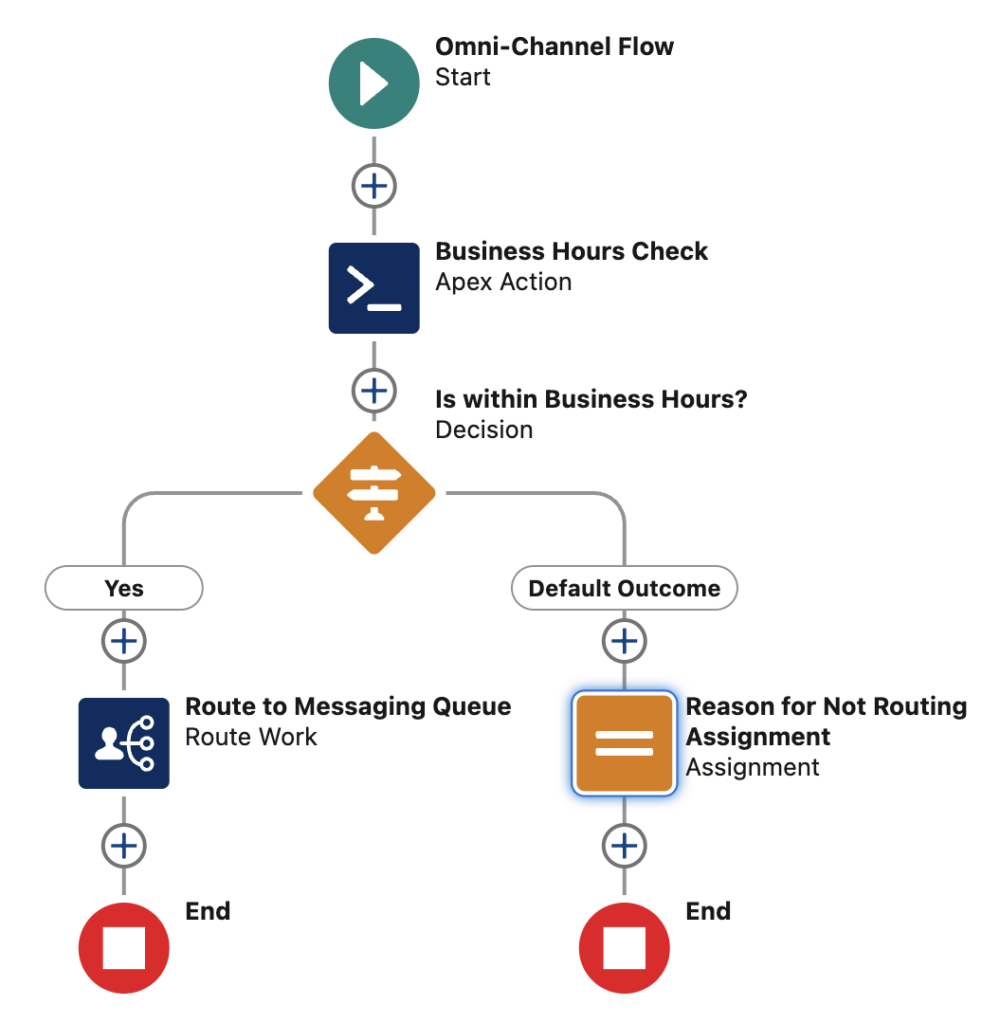
To implement this, you need to configure your Flow to identify “stop” criteria (like Business Hours) and assign the message before the Flow terminates.
1. Create the Variable
You must create a resource in your Flow with the exact API name expected by the system.
- Resource Type: Variable
- API Name:
reasonForNotRouting(Case sensitive) - Data Type: Text
- Availability: Check Available for Output
2. Define Your Logic (Decision Element)
You typically need a Decision element to check for conditions where routing should be skipped. Common examples include:
$Flow.CurrentDateTimeis outside of Business Hours.- The customer’s Entitlement check returns false.
- A pre-chat query indicates the user is blocked.
3. Assignment and Termination
If the Decision outcome leads to a path where you cannot route the chat:
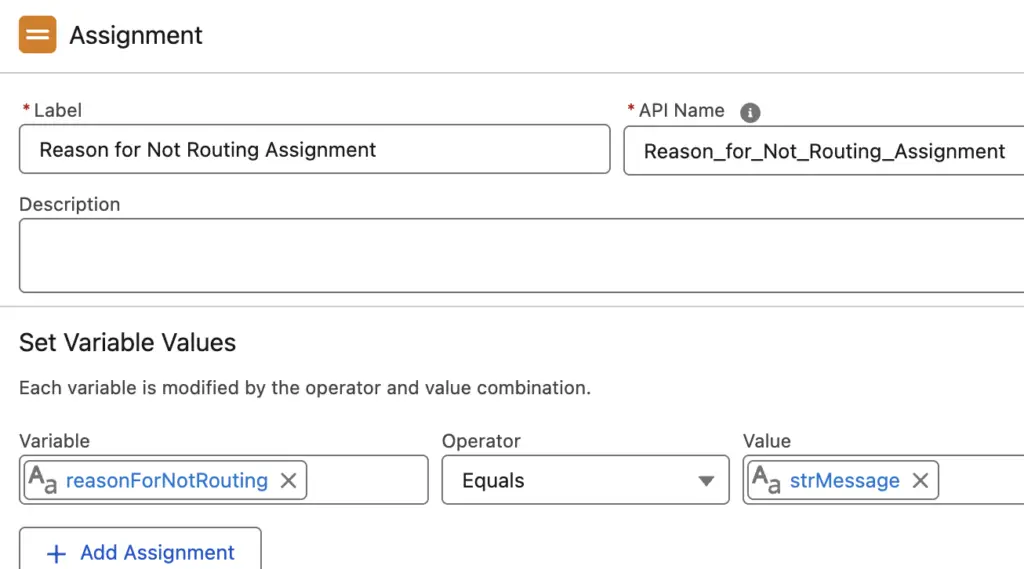
- Add an Assignment element.
- Set
reasonForNotRoutingto your desired customer-facing message (e.g., “We are currently closed. Please visit us from 9 AM to 5 PM EST.”). - End the Flow immediately. Do not add a Route Work action on this path.
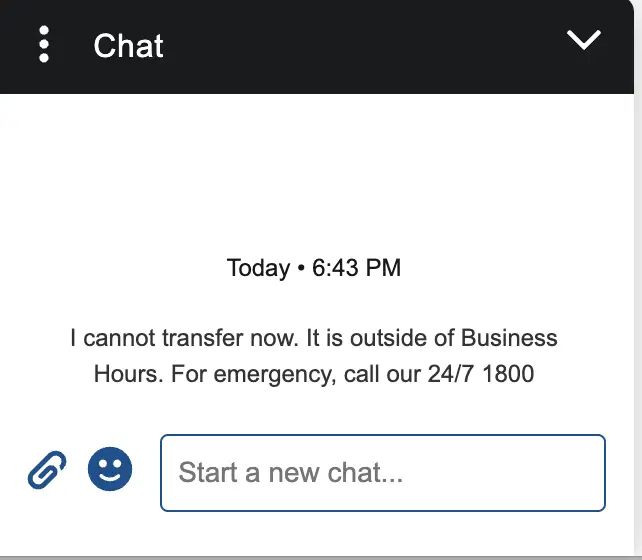
The Result: The message set to the reasonForNotRouting variable in the Omni-Channel flow will be shown directly on the Messaging Chat Widget, providing a seamless user experience.
Technical Summary
| Component | Setting/Value |
| Flow Type | Omni-Channel Flow |
| Variable Name | reasonForNotRouting |
| Input/Output | Available for Output |
| Trigger Condition | Must occur on a path where Route Work is NOT executed. |
| UI Impact | Displays text inside the Messaging Chat Widget conversation. |
Best Practices & Recommendations
While the implementation is straightforward, adhering to the following best practices ensures maintainability and a better customer experience.
- Sanitize Your Messages: Remember that the string assigned to
reasonForNotRoutingis visible to the end-user. Avoid putting internal error codes, Apex stack traces, or developer jargon in this variable. Keep it friendly and actionable. - Handle “Route Work” Failures Separately: Since
reasonForNotRoutingonly works if you don’t route, you cannot use it to catch errors after a Route Work action fails. If you attempt to route and it fails, you must rely on the “Fault” path of the Route Work element, which requires a different handling mechanism (often involving creating a Case or sending an offline message via a different channel). - Avoid Hardcoding: Instead of hardcoding text strings in the Assignment element, use Custom Labels. This allows you to translate the error messages into multiple languages based on the user’s locale without modifying the Flow version.
- Testing: Always debug your flow as another user to ensure the variable is being populated. However, the only way to truly verify the UI behavior is to test via a live Messaging for In-App and Web session.
Sample Omni-Channel Flow:
Sample Apex Class:
public class BusinessHoursController {

    @InvocableMethod( label='Business Hours Check' )
    public static List < BusinessHoursOutput > checkBusinessHours(
        List < String > listRecordIds
    ) {

        if (
            listRecordIds != null &&
            listRecordIds.size() > 0
        ) {

            System.debug(
                'Record Id::' +
                listRecordIds.get( 0 )
            );

        }

        BusinessHoursOutput objOutput = new BusinessHoursOutput();

        // Get the business hours
        Id BHId = [
            SELECT Id
            FROM BusinessHours
            WHERE Name = 'Default'
            LIMIT 1
        ].Id;

        // Current date and time
        Datetime now = System.now();
        System.debug( 'now::' + now );

        // Check if fall within business hours
        Boolean isWithinBH = BusinessHours.isWithin(
            BHId, now
        );
        System.debug( isWithinBH );

        if ( !isWithinBH ) {

            objOutput.strMessage
                = 'I cannot transfer now. ' +
                'It is outside of Business Hours. ' +
                'For emergency, call our 24/7 1800';

        }

        objOutput.isWithinBusinessHours = isWithinBH;
        return new List < BusinessHoursOutput > { objOutput };

    }

    public class BusinessHoursOutput {

        @InvocableVariable( required=true )
        public String strMessage;
        @InvocableVariable( required=true )
        public Boolean isWithinBusinessHours;

    }

}
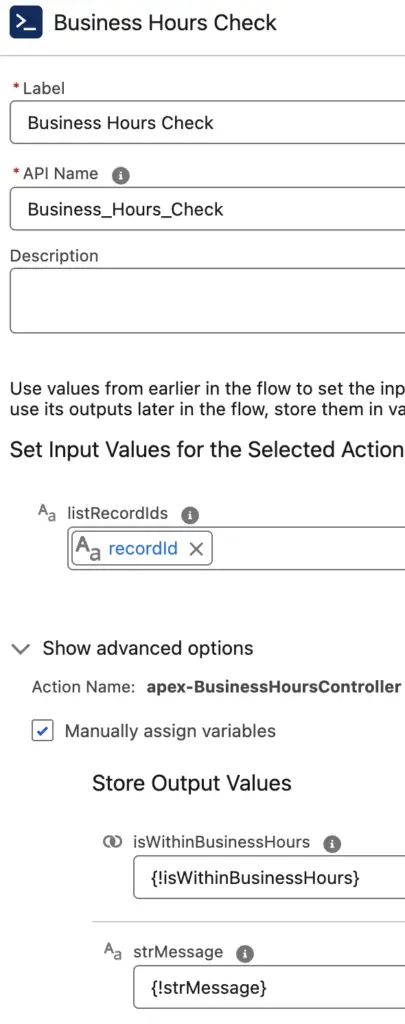
Business Hours Check Configuration:
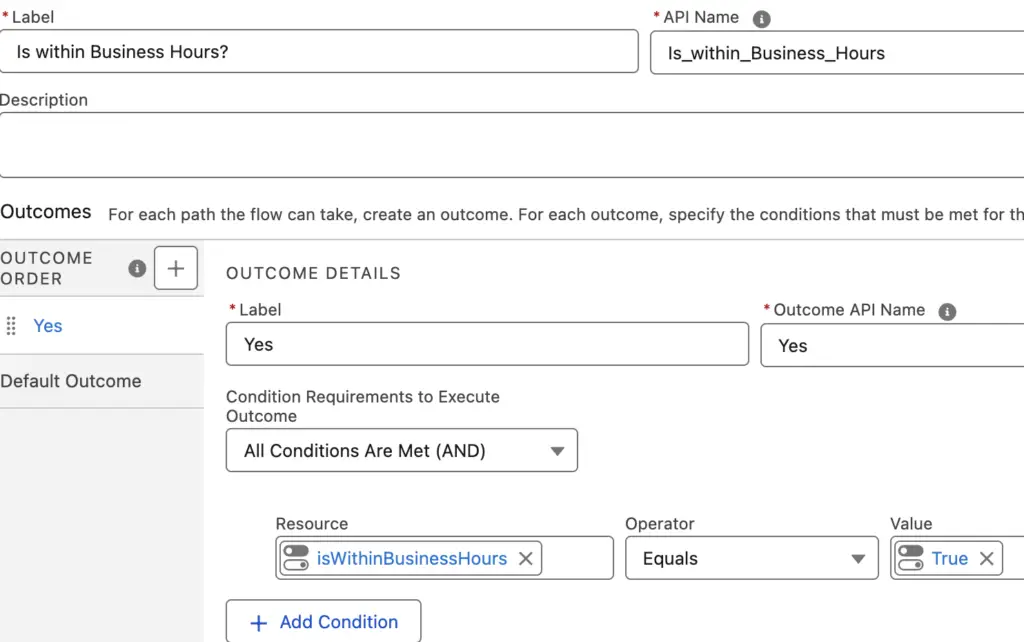
Is within Business Hours? Flow Decision Configuration:
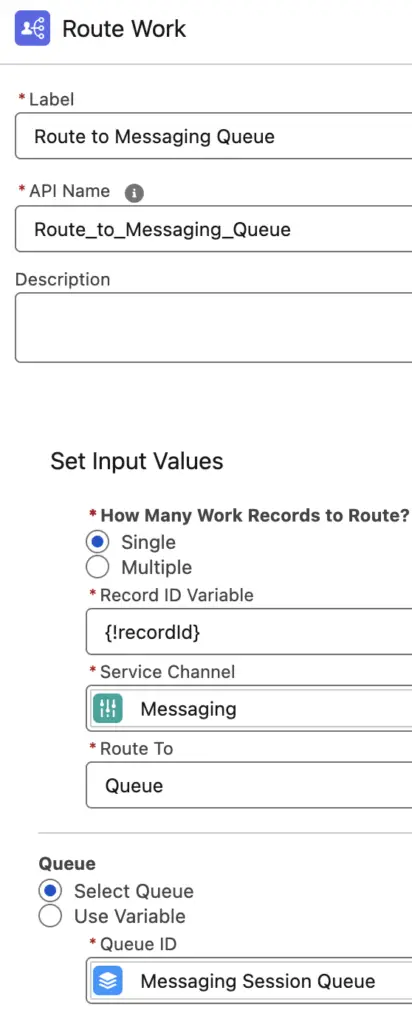
Route to Messaging Queue Route Work Configuration:
Reason for Not Routing Assignment Configuration:
Output: